Outline the story first
A board export turns each diagram into a slide or page, so decide what story the sequence should tell. A useful progression might introduce the problem, show the current process, compare options, and end with the recommended next step. If every frame is equally prominent, readers may not know where to focus.
Write a one-line purpose for each diagram before moving anything. Remove frames that repeat a point or belong to a later discussion. A presentation is more than a collection of good visuals: the order should help the audience build understanding.
Arrange frames to set the order
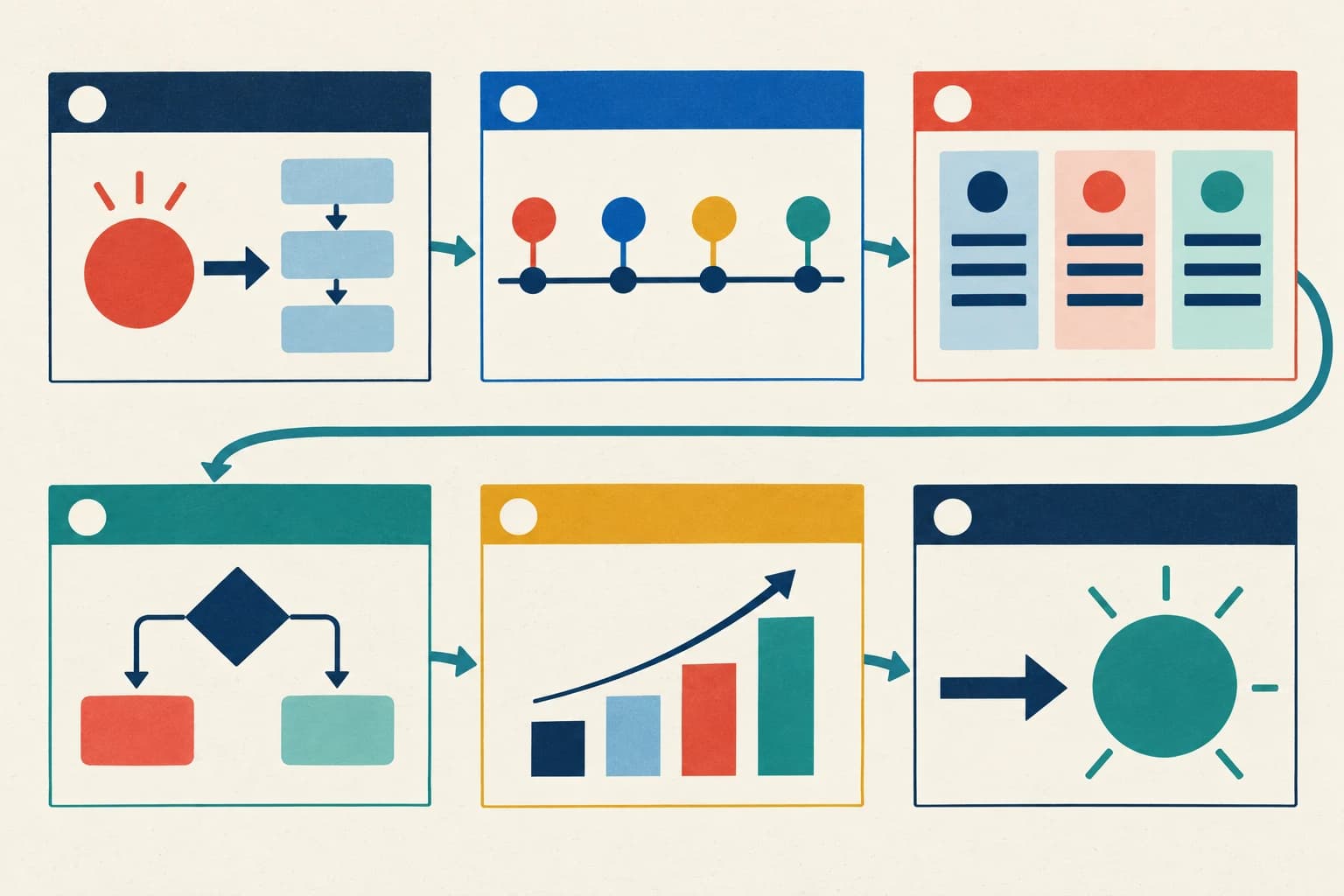
The deck export sorts frames by their board position from top to bottom and then from left to right. Arrange the board in rows that reflect the desired order. Keep frames aligned so a small vertical offset does not unexpectedly move one diagram before another in the exported sequence.
If the intended order is not obvious from the canvas, use deliberate row placement and confirm the frame titles. Do not leave a draft diagram above the introduction simply because it was created first. Board position affects the exported deck, so treat the canvas as an outline of the presentation.
Write titles that orient the audience
Each slide receives the diagram title above the image. Use a concise title that states the point or question, not a working filename. “Where the handoff stalls” tells the audience more than “Support flow.” A good title helps the slide make sense when it is viewed separately from the preceding slide.
Check that title length remains readable in a 16:9 deck. If a title needs several lines to explain the point, revise the diagram description or keep the supporting explanation in presenter notes or the surrounding document. Do not assume the audience can inspect the original board while looking at the deck.
Check image fit and legibility
PowerPoint and PDF exports place each diagram as an image. In PowerPoint, the slide title remains editable, but the diagram itself is not a collection of individually editable shapes. The image is fit within the slide area, so very wide or tall diagrams may leave space around them.
Open the exported deck and inspect every slide at presentation size. Look for text that appears too small, logos covering content, or diagrams that need a different layout. If the composition does not fit, revise the diagram or split it into two clearer slides before exporting again.
Keep the editable source
Exporting a deck creates a presentation artifact; it does not replace the editable board. Keep the board or save a JSON project backup so you can update the diagrams and regenerate the deck later. Store the source beside the presentation and note which version the export came from.
Before presenting, confirm that the slide order, titles, and data are current. A deck can travel after the board changes, so label the file with a date or version and remove stale copies from the handoff location. A short final review can prevent yesterday’s figures from appearing in today’s meeting.