Know where a new diagram is saved
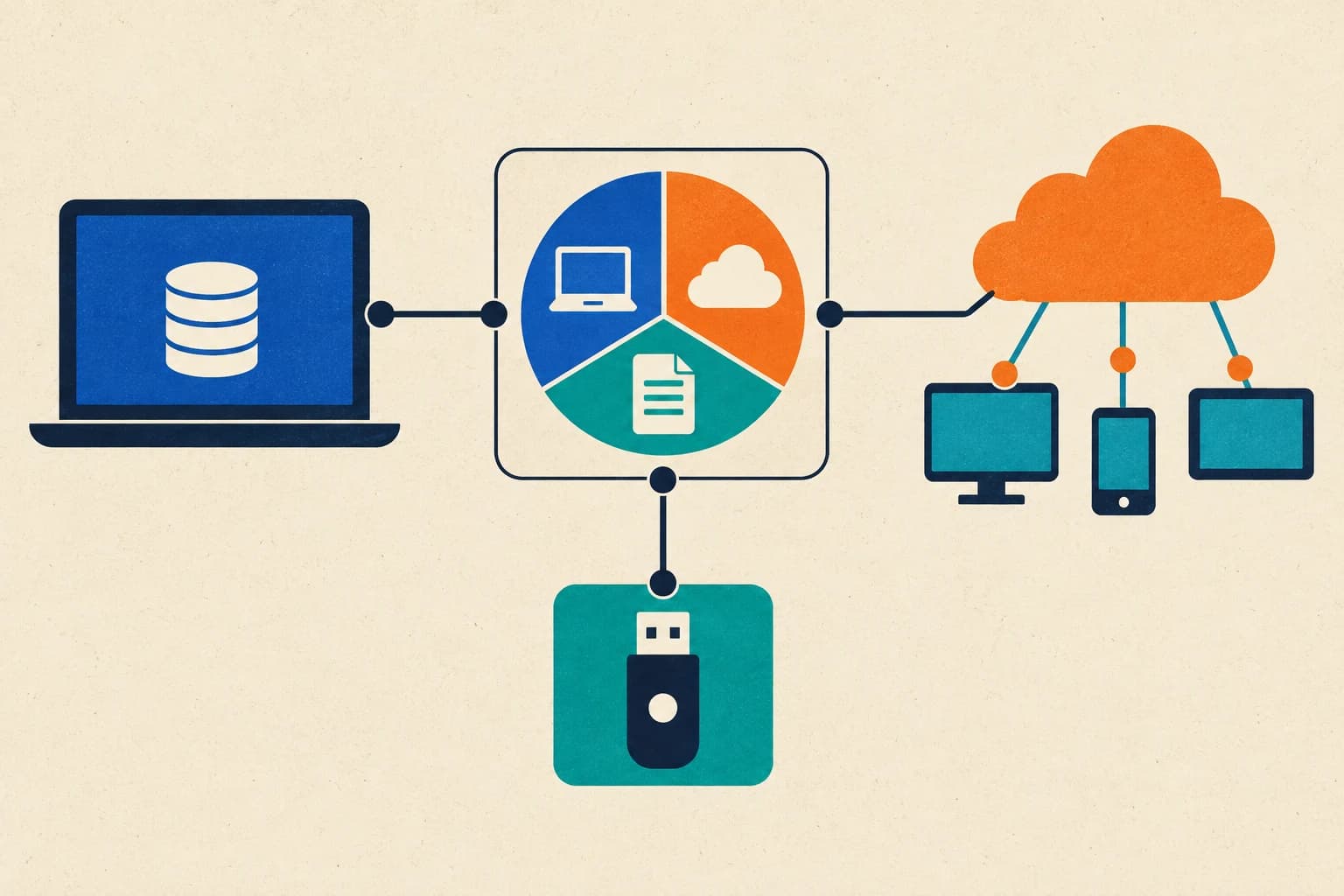
Autodiagram saves work locally in the browser by default. You can create, edit, and export diagrams without an account; the local copy stays on that device and browser. This is convenient for quick work, but it means a different browser will not automatically contain the same board.
If you create an account and use cloud sync, boards can be stored with your account and opened from your other signed-in devices. Sync is a way to keep your own work available; it does not give every colleague editing access to the same board.
Choose sync when the project needs it
Sign in when you need your boards across devices or want the account-backed version history features. Check the plan’s board sync limits before relying on a large workspace. Keep local work and cloud state in mind when deciding which version is current.
For example, a diagram started on a laptop may still be only in that browser until you sign in and sync. Before presenting from a second device, open the board there and confirm the latest edits are present. Do not assume that an exported image or local browser copy has synchronized by itself.
Use JSON as a portable backup
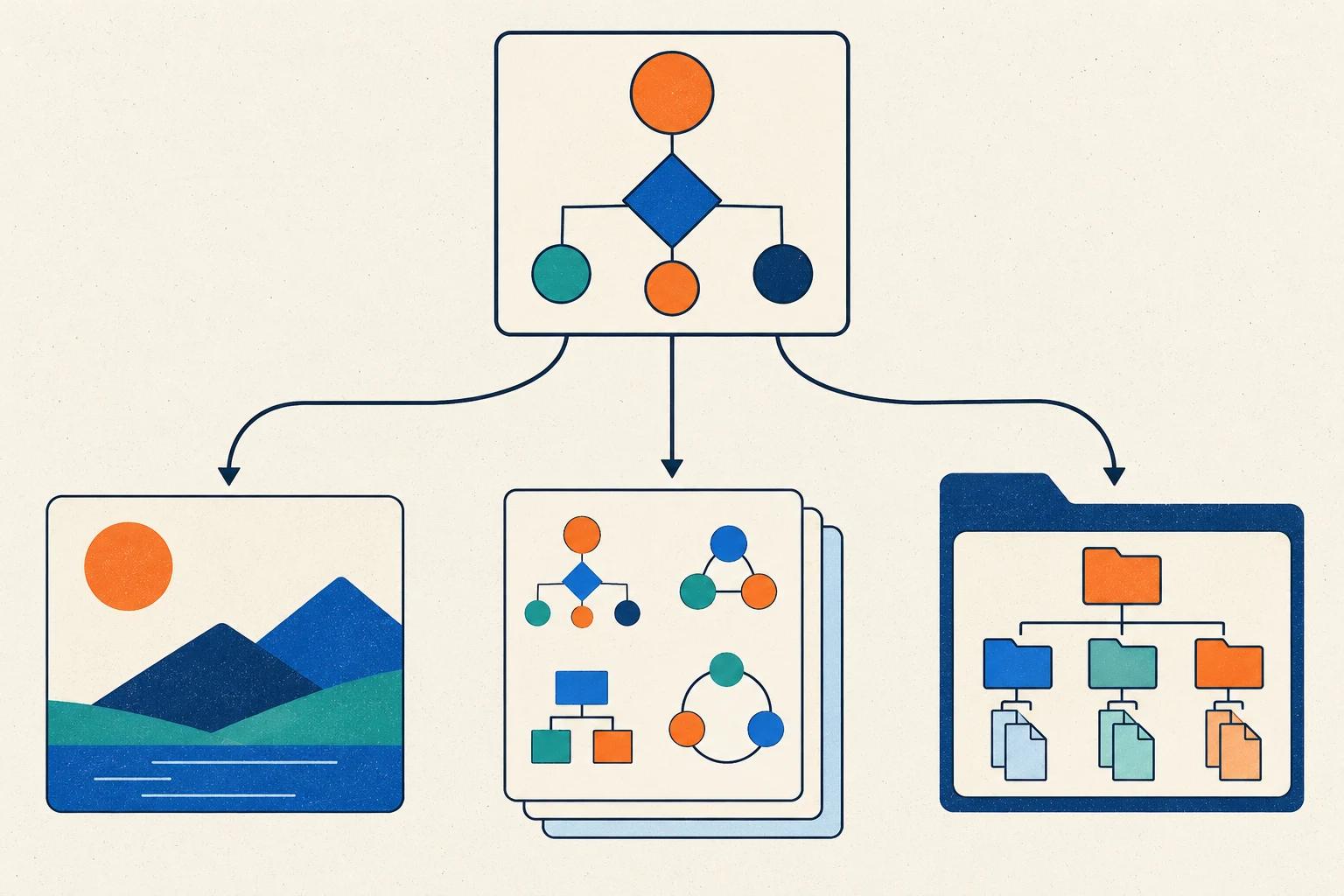
Export an editable project JSON file before clearing browser data, moving between environments, or making a major change. Keep it in a location you control and follow your organization’s rules for sensitive content. The backup is a snapshot; later board edits will not update the file automatically.
When moving the board, import the file into the destination browser and inspect the frames. Retain the original until you know the restored project is complete. This explicit backup is useful whether or not you also use account sync.
Make the storage choice visible
Tell colleagues whether the board is local, synced, or represented by a downloaded project file. If one copy becomes the working source, label it clearly and avoid editing a stale export. Version clarity matters most when several people have received copies or when a project spans devices.
For an important board, use both account sync and a periodic JSON export if your workflow requires independent recovery. Review the backup and sync state before relying on them. Your diagrams remain editable, and you choose where to keep, share, and protect them.