Start from the final display size
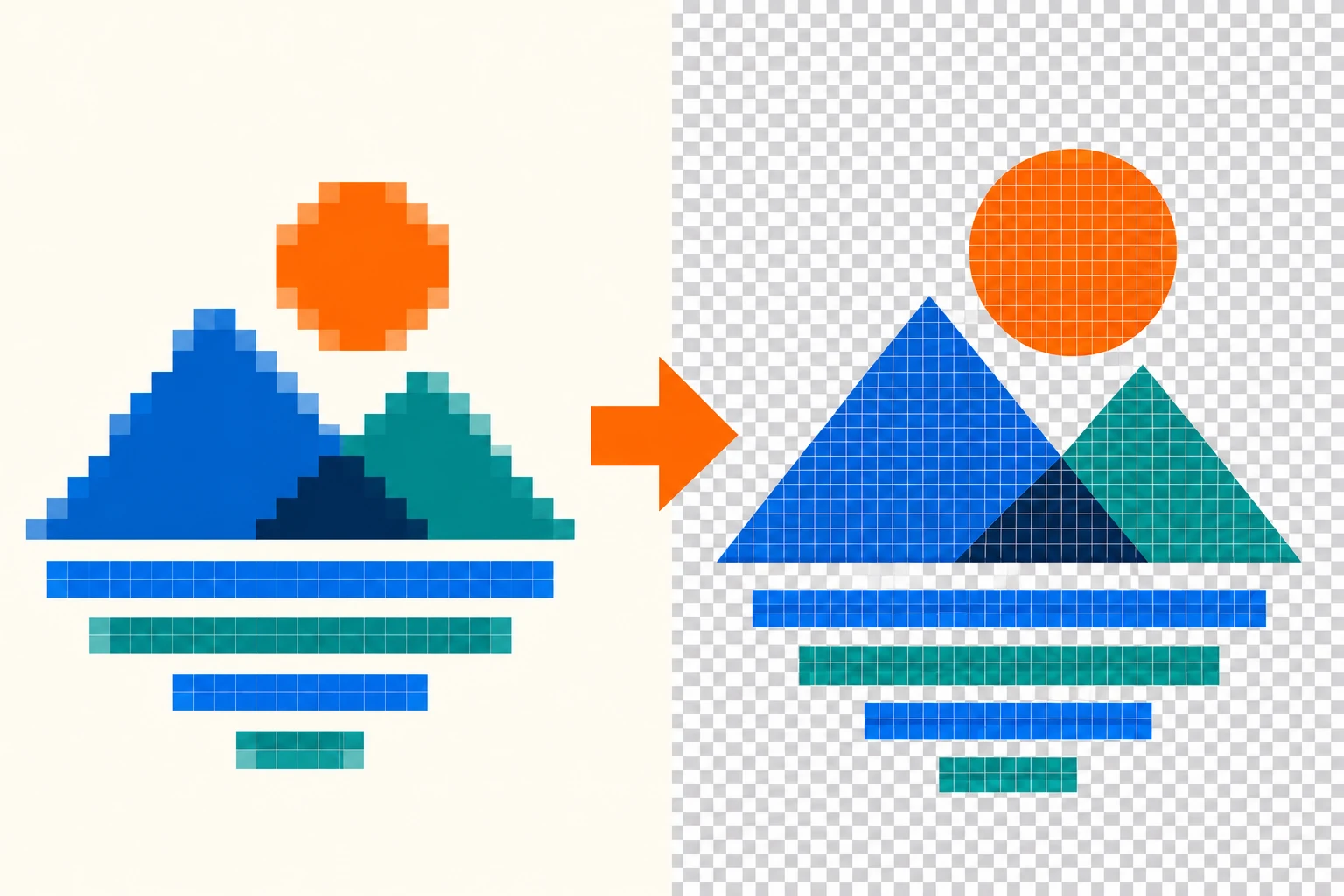
PNG is a raster image, so its pixel dimensions matter when it is enlarged. Choose a resolution based on how large the diagram will appear in a slide, page, or screen. Autodiagram offers 1×, 2×, and 3× PNG export options, with higher-resolution export available on Pro.
For a small thumbnail, 1× may be enough. For a diagram that fills a presentation slide or appears on a high-density screen, a higher export resolution can preserve sharper lines and text. Avoid choosing the largest option automatically if the destination will display the graphic at a small size.
Decide whether the background should stay
A solid background can help a diagram feel like a complete card. A transparent export can blend into a colored slide or document, but it may also reduce contrast if the destination surface is not what you expected. Use transparency when you know the host background and have checked the colors against it.
If the diagram contains pale shapes or white text, preview it on the actual slide color before exporting. A background that looked distinct in the editor could disappear on a similarly colored surface. For Pro plans, the export menu supports a transparent-background option; confirm the option is enabled for the file you are generating.
Check the mark and branding
Export appearance can depend on your plan and applied brand kit. Free image exports include a small Autodiagram mark; Pro can remove it and can include the kit’s logo when one is applied. If the graphic is meant for an external audience, review the mark, logo, and usage requirements before you send it.
A logo should not cover any meaningful label. If its corner placement conflicts with content, move it, choose another corner, or leave it off. Transparent backgrounds make corner placement especially noticeable, so test the exact combination of background, logo, and palette in context.
Inspect scale and legibility
After exporting, open the PNG and view it at the approximate size readers will see. Confirm that text remains readable and that the important contrast survives. If a diagram has many items, more pixels may improve crispness but cannot make the layout itself less crowded.
If it still feels dense, shorten labels, split the content, or choose a different layout before increasing resolution. A high-resolution export can make an unreadable diagram look sharp at full zoom while remaining difficult to understand at normal viewing distance.
Keep a working source
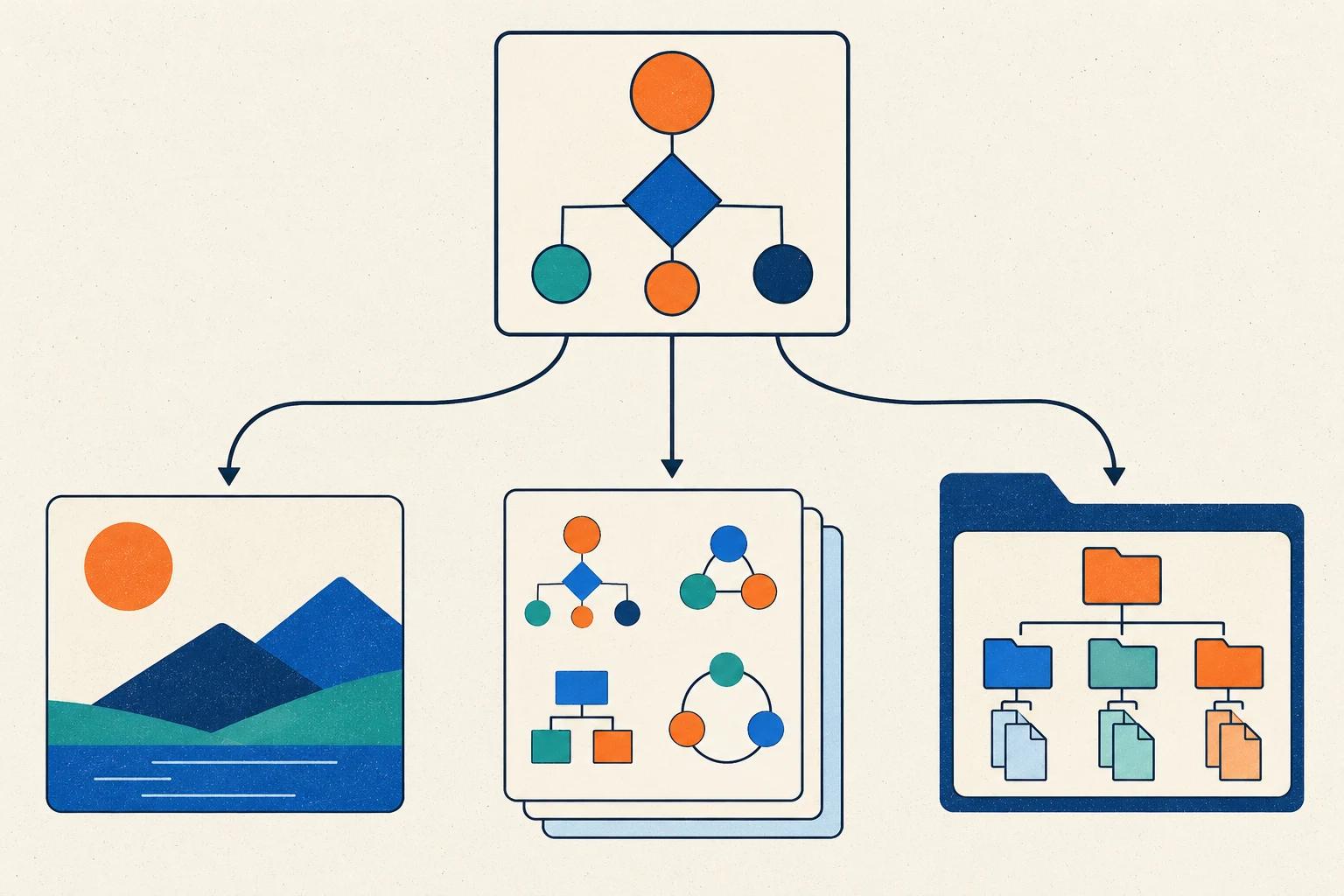
PNG is a convenient delivery format, not a continuing work file. Save the board or export the project JSON when you expect updates. Keep the image and its source together with a version or date so a colleague can reproduce it after the data changes.
When you replace an image in a deck or report, make sure every placement uses the current export. Old copies often remain in appendices or shared folders. A quick search for the previous filename can help you remove stale versions before distribution.