Choose the right editing surface
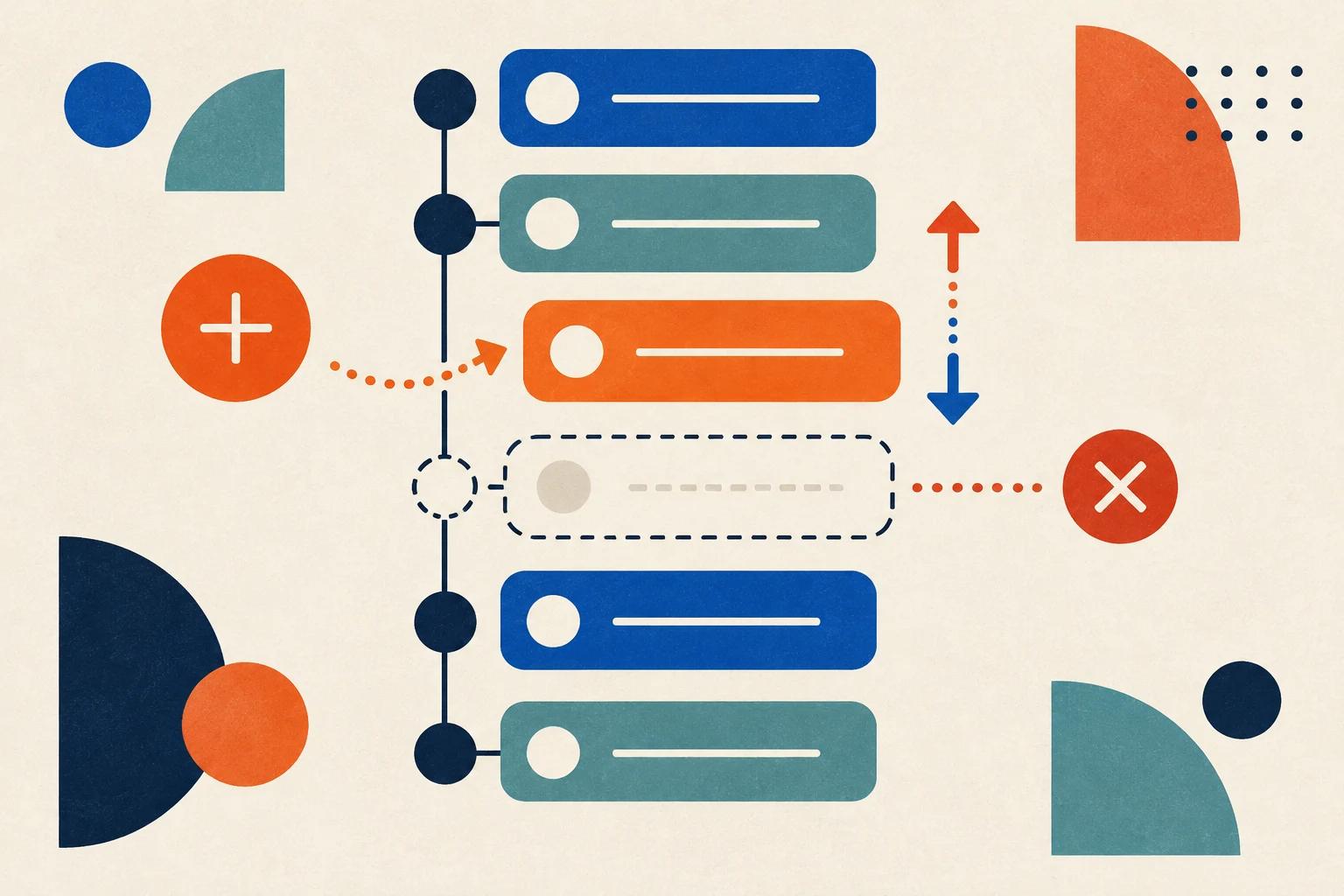
When you know exactly what should change, direct editing is often clearer than asking AI for another draft. The outline panel lets you change a diagram’s title and description, edit item labels and supporting text, adjust chart values, reorder items, remove them, or add new ones. Use the smallest edit that resolves the problem.
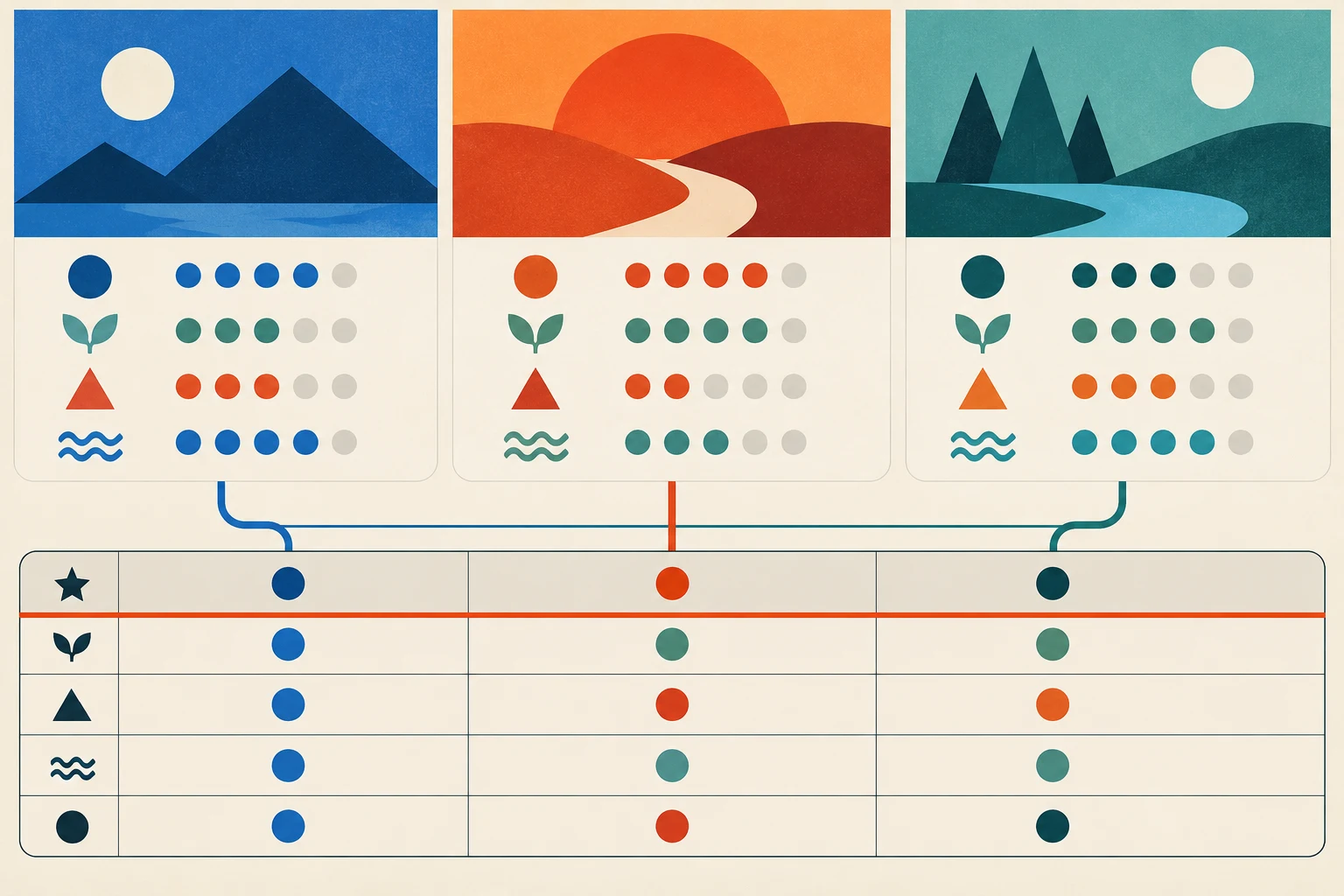
For an expense chart, correcting “Travel” to “Ground transport” and updating a known value is a precise content edit. If the meaning of the categories is in dispute, stop and resolve that question first. The editor should not make an uncertain classification look official simply because it is easy to change a label.
Write labels for scanning
An item label should carry the idea a reader needs at a glance. Keep the description for a short qualification or piece of context. “Verify account access” is easier to scan than a full paragraph inside the label; a short description can say which system or role is involved.
If a detail changes the action, put it where readers will see it before they act. Do not rely on a description that may be visually subtle to carry an essential warning. Edit both the label and supporting text, then inspect how the layout renders their relative weight.
Reorder to improve the reading path
Position and order create expectations. A list’s first item appears more important or earlier; a comparison’s rows suggest that criteria belong together. Use the move controls to change an item’s order when the source supports that new sequence. Do not reorder merely to make a preferred option look best.
For a project sequence, arrange actions in the order they actually happen. For a list of independent principles, order by what a new reader should learn first. If the item order carries no meaning, consider grouping or naming the groups so readers do not infer a chronology that does not exist.
Add and remove with a reason
Add an item when it fills a real gap in the diagram’s purpose. Remove sample content or an obsolete step rather than keeping it as a placeholder. If a deleted item changes how the rest of the chart connects, inspect the updated diagram to make sure the remaining relationships still make sense.
For a flowchart with one redundant branch, removing the branch label alone may leave a dangling route in the underlying relationship. Recheck connectors and outcomes after content edits. A tidy outline is only useful if the rendered structure remains accurate.
Check the rendered result
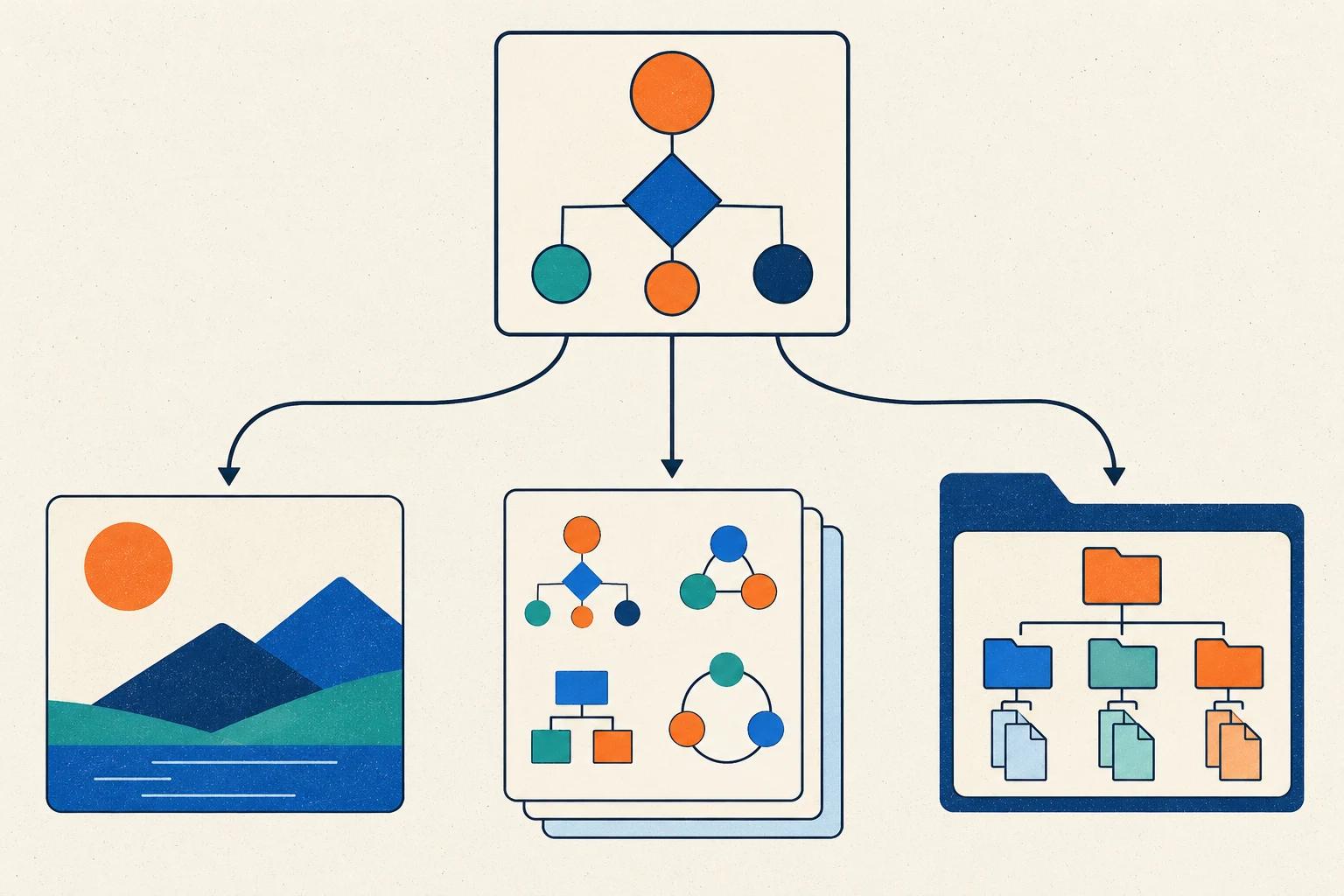
After editing, review the preview at normal scale and look for labels that wrap, descriptions that are cut off, or values that no longer match the source. The editor saves changes to the working board. If you need a standalone copy, export the format your reader needs after the content is settled.
Keep a JSON project backup when you want the structure to remain editable. A PNG or SVG is convenient to place elsewhere, but it is a snapshot. Confirm that someone else can still make future corrections from the project or board you retain.