Choose a page that benefits from the visual
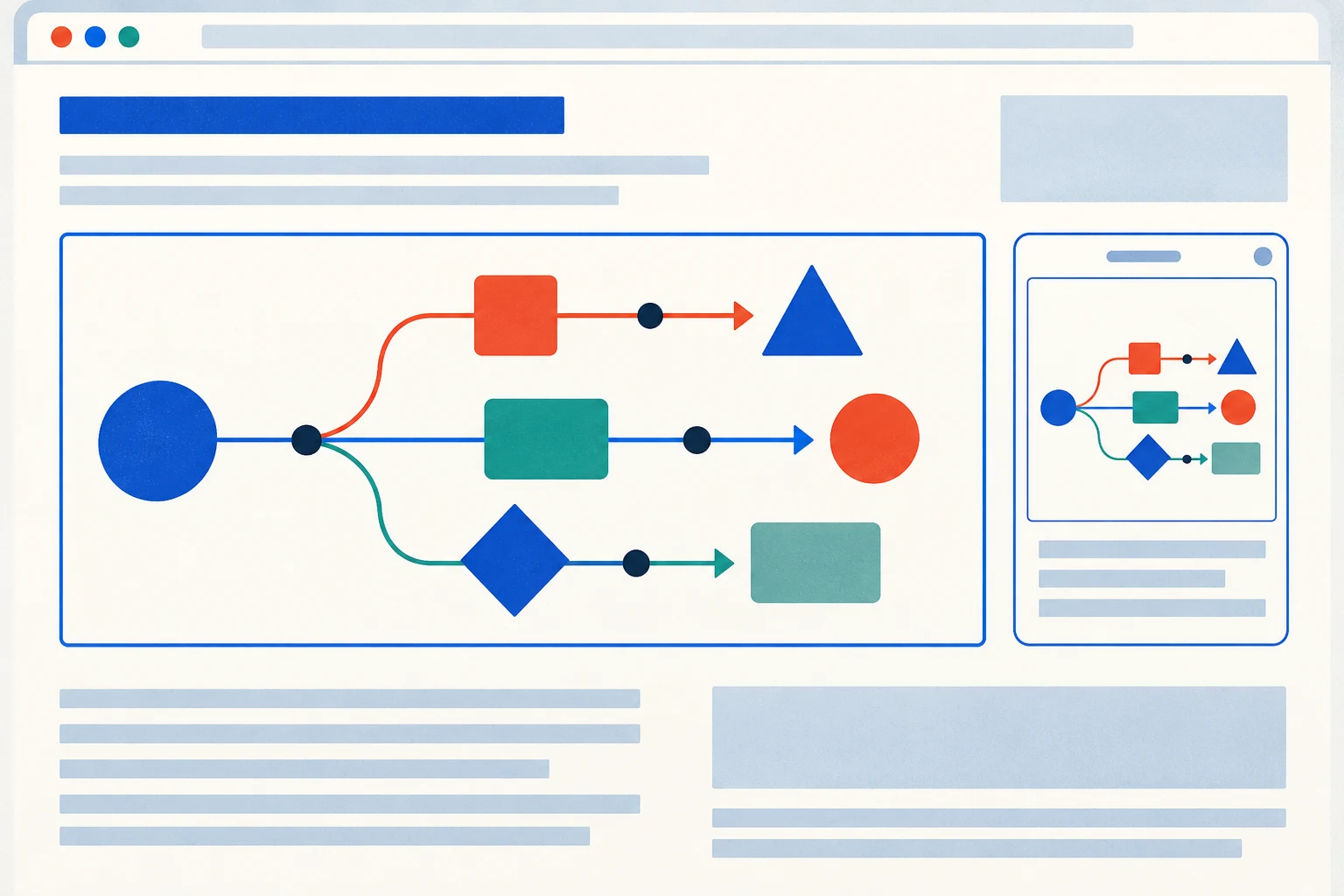
An embedded diagram can help when readers encounter a process explanation, onboarding guide, or project reference in the place they already use. Put the visual close to the text that explains its purpose. Do not embed a diagram simply because the page has an empty space; the visual should make a relationship easier to understand.
For a help page, a short workflow may show the route from a user’s question to a resolution. Keep detailed policy and exceptions in the surrounding content or a linked source. The embed is a read-only view of the board, so use it to illustrate the current structure rather than to replace every explanation.
Design the surrounding page
Give the embed enough width and height to show the diagram without making readers scroll inside a cramped frame. Add a heading, a short explanation, and descriptive text for readers who cannot use the visual or need additional context. The page should remain useful if the embed is unavailable.
Test the page at mobile and desktop widths. A fixed height may crop or create internal scrolling on a narrow screen. Check keyboard navigation and any host-page constraints, and make sure the iframe’s accessible title explains what the embedded content is.
Keep access and privacy in view
A share link makes the board available to people who can reach it, subject to its settings. Remove confidential details before embedding a board publicly. A password can add a layer of protection where available, but a public page is not a suitable place for information that should remain private.
If the diagram changes over time, assign an owner and a review reminder. The embed can reflect edits to the shared board, which avoids replacing static images after every update. That convenience makes content governance more important: viewers may rely on the current version without knowing when it was last reviewed.
Verify the page after publishing
Load the host page in a private browser window or another account to verify that the embed is visible to the intended audience. Confirm that the right board appears and that the link has not been revoked. If a password is required, check the expected access experience before sending the page to users.
Include a route to the accessible text or the board owner if readers need help. An embed is one presentation of the source diagram, not a complete accessibility strategy or a backup. Keep the board and a project export available so the content can be repaired if the page or link changes.