Prepare the board sequence
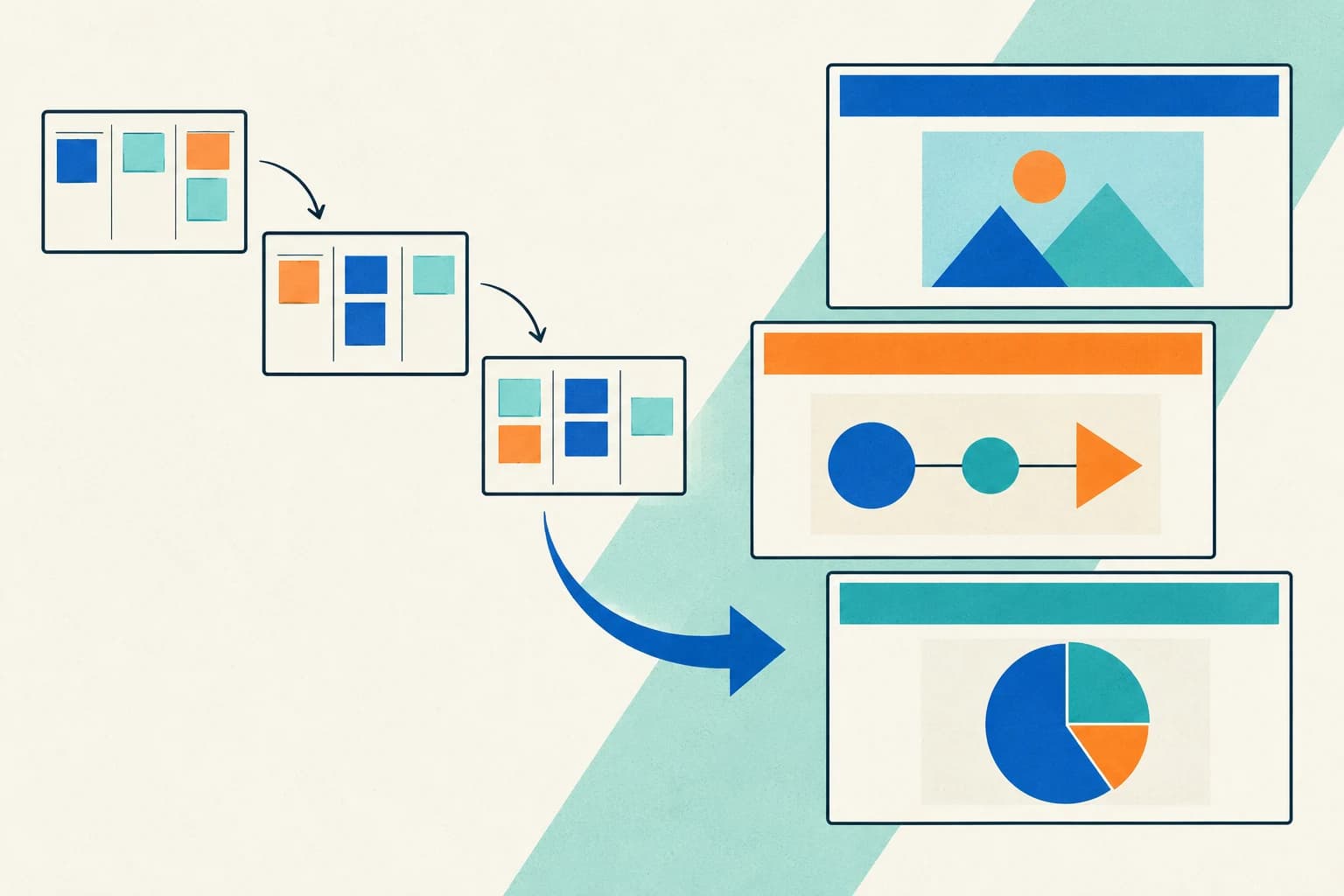
Before exporting, treat the board as a presentation outline. Arrange frames in the intended order; the deck export follows board position from top to bottom and then left to right. Remove draft frames that repeat a point or do not serve the audience, and give each remaining diagram a title that can stand alone.
A concise deck might introduce a process, compare two options, then close with a decision route. If one frame contains background detail and another carries the recommendation, place them so the audience can follow the reasoning. The board arrangement is part of the story, not just workspace housekeeping.
Know what the deck contains
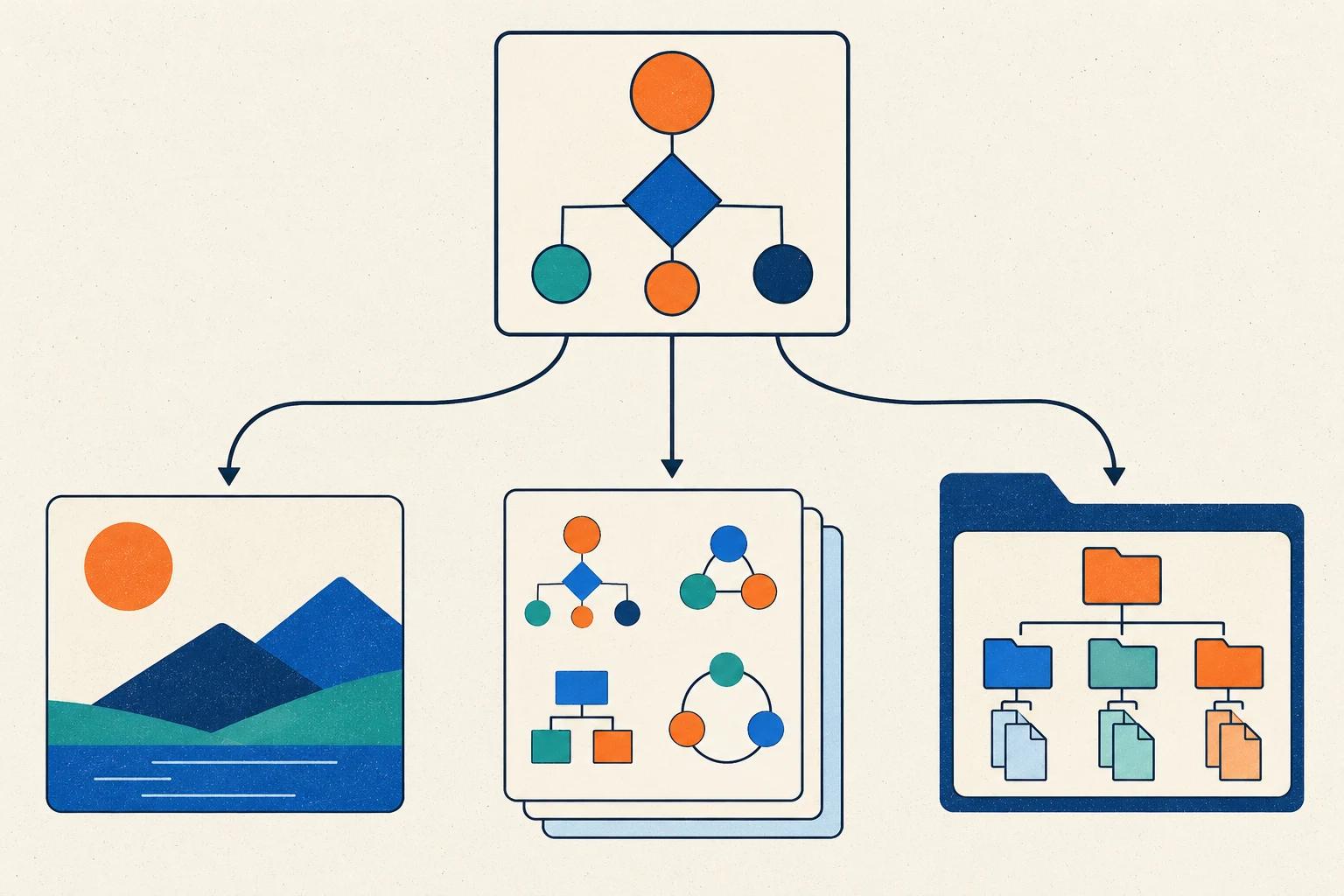
Autodiagram exports the board as a PowerPoint file with one diagram per slide. The diagram is placed as an image, and its title is editable PowerPoint text. This can work well for visual handouts or a short overview, but the diagram labels are not individual native PowerPoint shapes.
If you need to recolor one node or rewrite a label inside PowerPoint, revise the source diagram and export again. The deck is designed to carry a rendered visual reliably; the editable project remains in Autodiagram. Set that expectation before handing the file to someone who will need to revise its content.
Check the slide fit
The deck uses a widescreen 16:9 slide. Each diagram is fitted and centered in the available area under its title. An unusually tall or wide composition may leave more open space around it, while a dense image can still appear small even when fit correctly.
Open the exported deck and inspect each slide at presentation size. If the diagram is too small, revise its layout or split the information into separate frames. Do not stretch the image beyond its proportions to fill the slide; distortion makes shapes and text harder to interpret.
Review every title and logo
The slide title comes from the diagram’s title field, so remove draft labels such as “Untitled” before export. Check names, numbers, and dates in the image itself. Applied brand-kit logos may appear on Pro exports; verify that the placement is suitable for the deck and does not cover content.
Confirm the presentation’s reading order with someone who has not seen the board. They should understand why each slide follows the previous one. If a slide needs explanation that the diagram cannot carry, add that context in the deck rather than relying on the original editor being available.
Retain the editable source and version
Keep the board or a JSON project export alongside the PowerPoint. When a fact changes, edit the diagram, create a fresh deck, and update the version label or date. A previously exported deck does not update when the live board changes.
If the audience only needs a continuously current view, a read-only share link may be more suitable than sending files repeatedly. For a presentation, however, a file can be convenient offline. Choose based on whether the meeting needs a stable snapshot or access to the latest board.