Search with a useful starting phrase
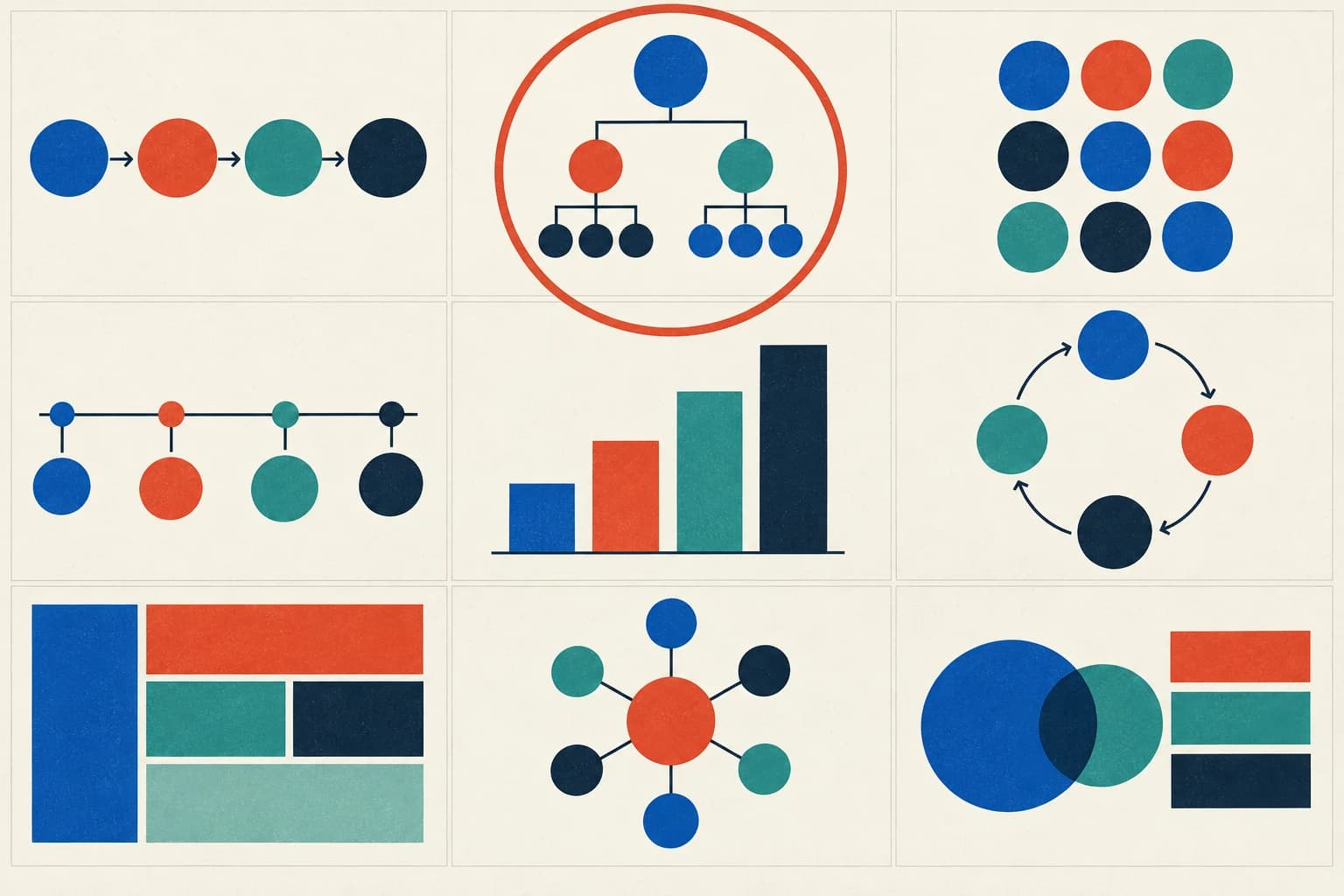
The template gallery lets you search layouts by name, description, category, and template identifier. Start with the relationship you need to show, such as timeline, comparison, or process, rather than a visual adjective alone. That keeps results focused on how the diagram should work.
If you do not know the exact format, try two related words. “Milestone” may surface a different set than “timeline,” while “branches” can lead toward hierarchy layouts. The gallery shows matching layouts and their previews, so you can compare the structure before starting.
Narrow results by category
Use category tabs to focus on processes, timelines, lists, comparisons, hierarchies, charts, or relationships. This can help when you already know the data shape but want to inspect several treatments. A category is a browsing aid, not a rule that says all diagrams of that subject must use one layout.
For a project status view, a timeline category may show milestones; a list or chart category may better fit status counts. Keep the reader’s question in mind while filtering. The most relevant template is the one that makes the needed relationship visible.
Inspect the preview for meaning
Look at the preview’s starting point, direction, grouping, and amount of space for labels. Ask what a reader will infer from position and connectors. A flow line implies order, a tree implies levels, and columns imply comparison. A decorative form can still carry a strong meaning.
If a preview suggests relationships you do not intend, choose another template even if the illustration looks appealing. The template should clarify your material rather than reshape it into an inaccurate story. Try the same small outline in two candidates if the distinction is not obvious.
Open the template and replace its examples
Selecting a template opens it in the editor with a starting structure. Replace sample content with your own labels, values, and details. Remove any unused items and verify that the layout still makes sense after the example text is gone.
Keep your source notes nearby while editing. A template can offer a helpful visual arrangement, but it cannot confirm whether a process rule or data point is correct. Check the result and adjust the layout if your real content has different relationships or density.
Save a useful starting point
Once the diagram matches your material, give it a specific title and save it on a board or export an editable project. The gallery helps you move from a blank page to a promising structure; the editor gives you the controls to make the result yours.
If you often use a layout, note its name for the next project or share the completed board with the team. Do not reuse the sample’s wording as a rule. A strong template speeds up arrangement while leaving the meaning and evidence with the people who own the content.