Understand what version history records
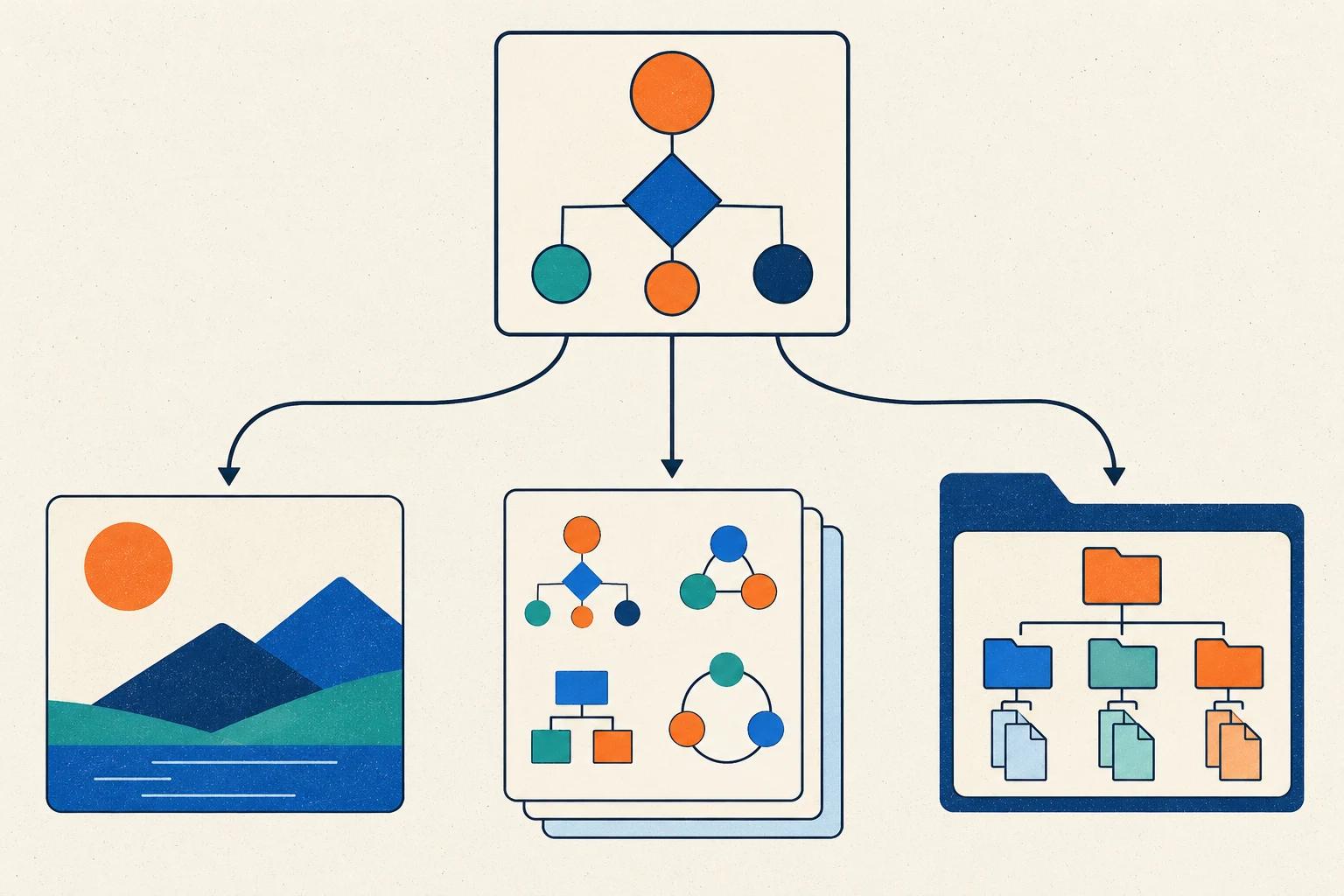
Autodiagram’s version history stores snapshots of synced boards as they are edited. It is available for signed-in accounts, and the retention period depends on the plan. The history menu shows saved times and a summary of the board, including its title and number of diagrams.
Snapshots are not created for every keystroke. Synced boards save a version periodically as you edit, so the history is useful for recovering a prior state rather than reconstructing every tiny change. Keep a separate project backup when you need a portable file outside the account.
Find the version you need
Open version history and compare the listed timestamp and board summary with the change you want to undo. If a recent revision removed a frame or changed a process, look for a snapshot from before that edit. The timestamp helps narrow the choice, but it does not explain why the board changed.
When several versions have similar titles and frame counts, open the likely snapshot and inspect it carefully. Confirm the important labels, relationships, and positions. Do not assume that the newest snapshot before a timestamp is necessarily the right version for the current project.
Restore and inspect the board
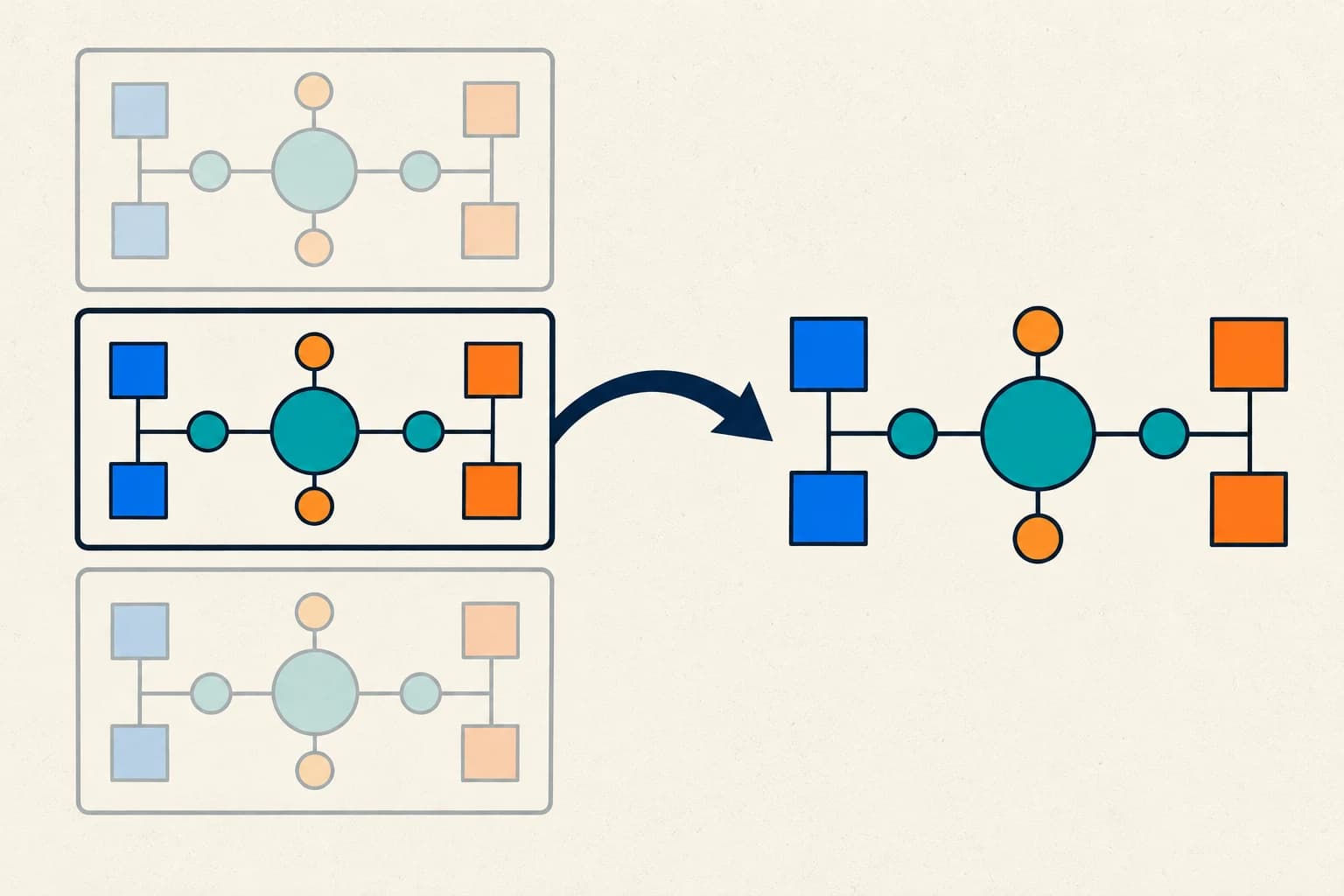
Restore the selected snapshot, then review the board that appears in the editor. Check all frames that matter, not only the one you were editing. If the restored content is the desired version, continue from it; if it is not, use undo or select another snapshot as appropriate.
Restoring is an edit to the current board, so the change can be undone with the editor’s history shortcut. This is useful if you selected the wrong point. Still, take a moment to verify the restored source before exporting or sending a link.
Understand retention and sync limits
Free accounts keep a shorter history window than Pro, and older versions may no longer appear after retention expires. Version history also depends on the board being synced; a diagram that exists only in local browser storage does not have the same server snapshots.
If a board is important, sign in and confirm its sync state before relying on history. Export a JSON copy at meaningful milestones and store it according to your retention policy. History and backup serve related but different recovery needs.
Explain the recovery to collaborators
After restoring, tell collaborators which version is now current and why. A live share link will display the current board, so viewers may see the restored state without receiving a new URL. Update any downloaded images, PDFs, or decks separately; those files remain snapshots of their earlier export.
For a sensitive decision record, note the restoration date and the reason in a project log. Version history helps recover content, but a short explanation prevents the restored state from looking like an unexplained reversal.