Decide what you already know
Templates are most useful when the shape of the problem is familiar. You may already know that the information forms a sequence, a hierarchy, a comparison, or a set of related points. If you are still deciding what the material means, write down the question first; a template cannot resolve a disagreement about the underlying idea.
For an employee onboarding guide, you might need a simple sequence from account setup to a first reviewed assignment. If instead you need to show who owns each support path, a process layout with role lanes may be a better starting point. Name the relationship before browsing visual examples.
Browse by the job the diagram does
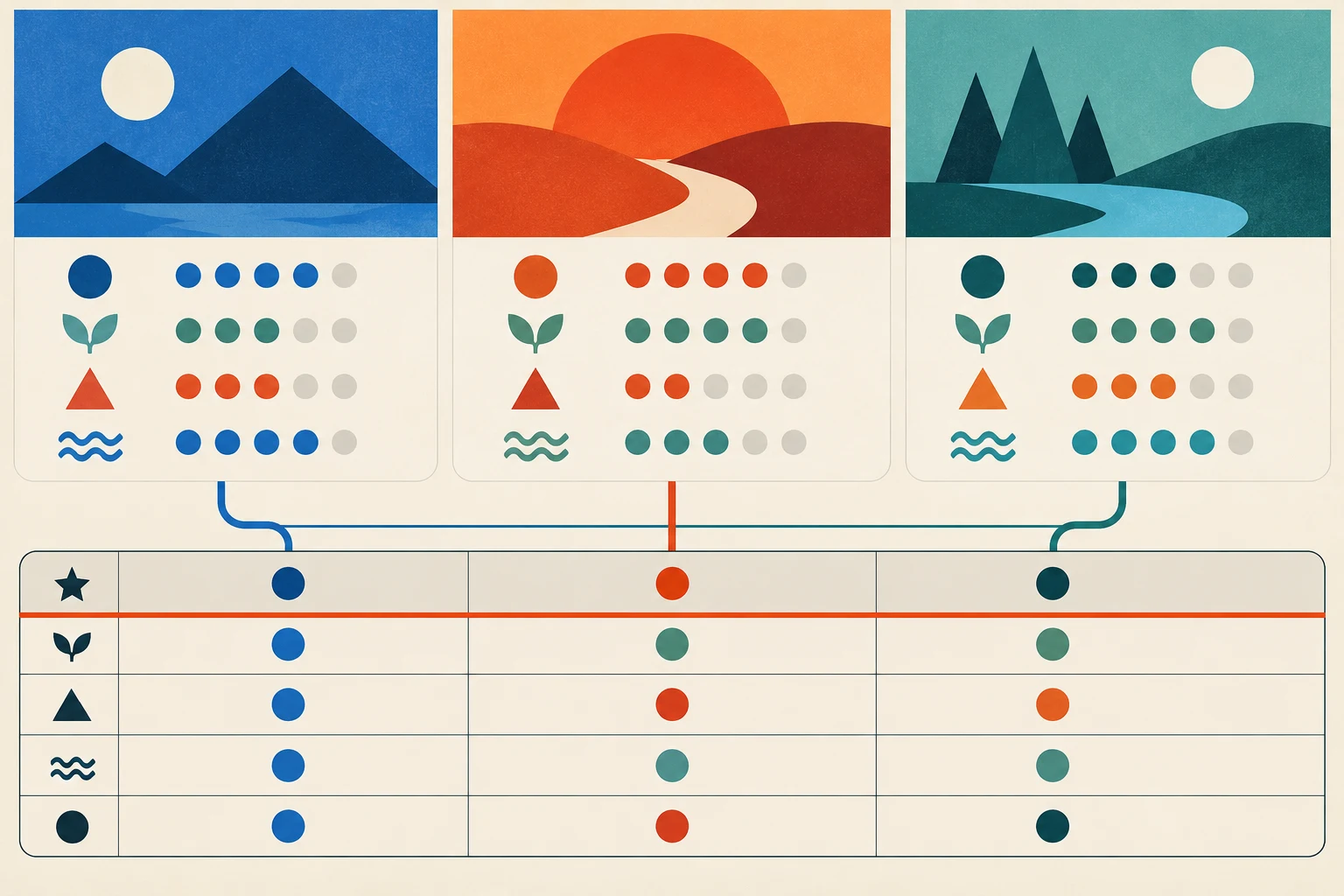
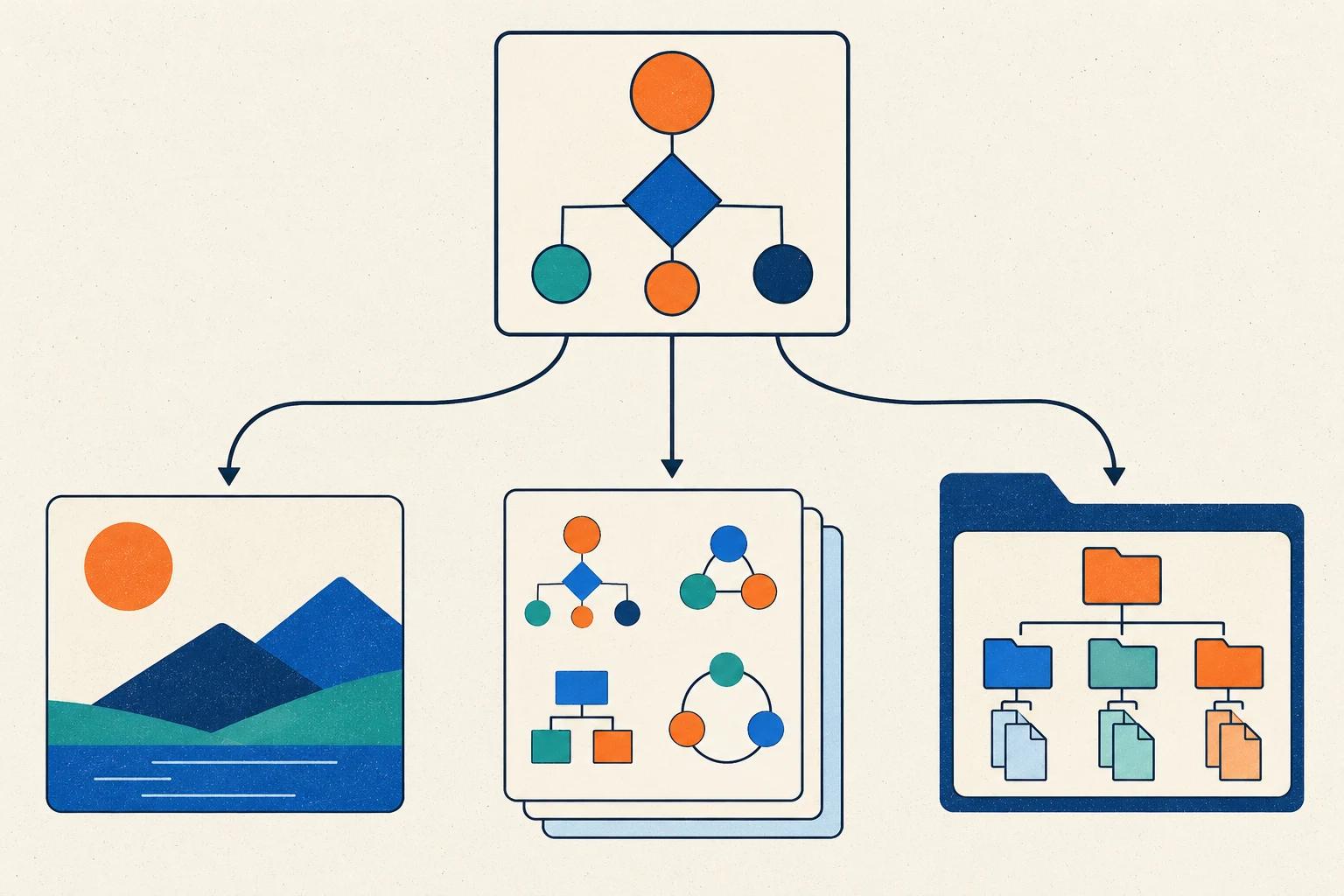
The template gallery groups layouts into kinds such as processes, timelines, comparisons, lists, hierarchies, charts, and relationships. Start with the closest group, then inspect a few previews. Look at what the layout makes easy to compare or follow, not only at its color or decorative style.
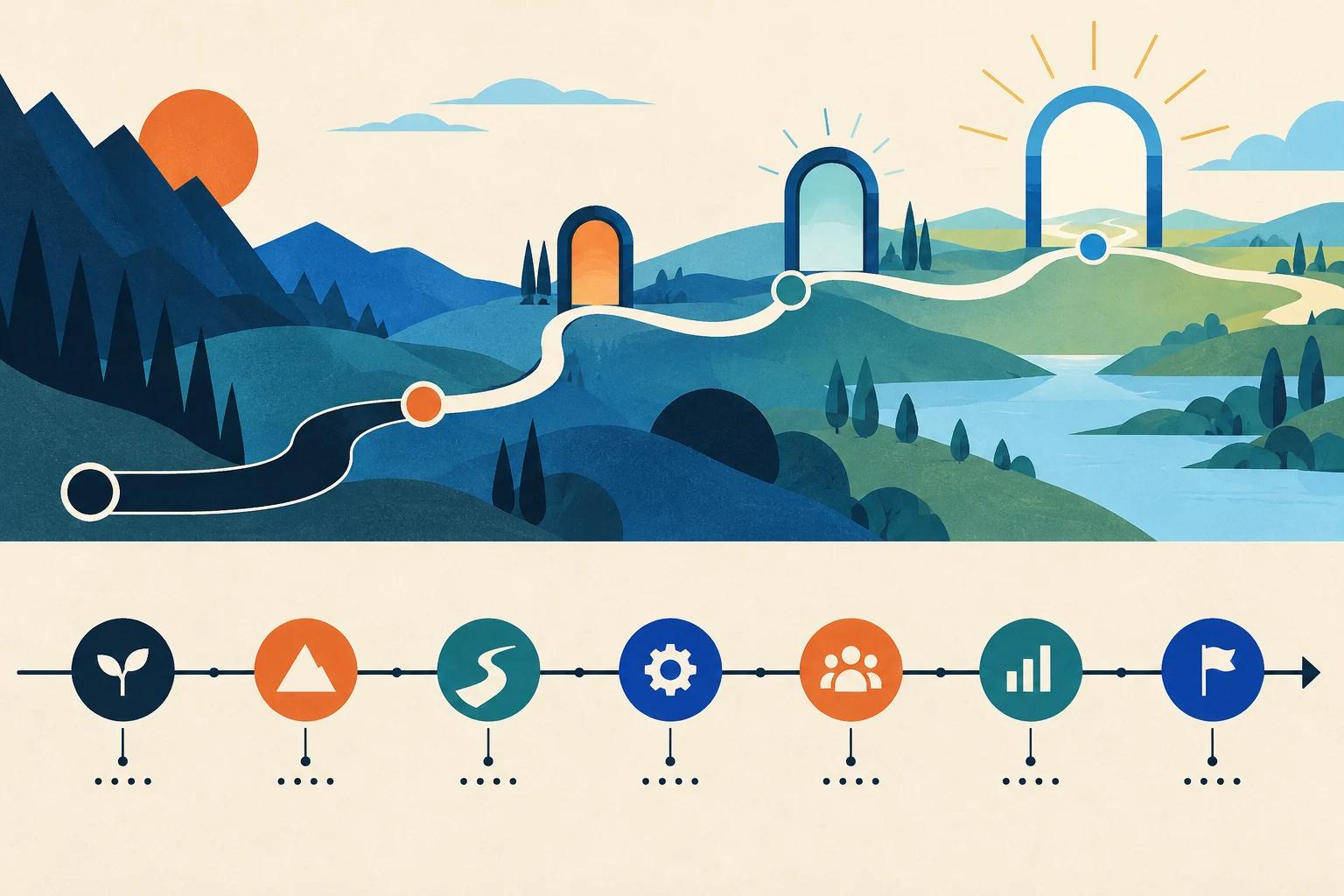
A timeline emphasizes order and date. A comparison places alternatives in relation. A mind map gives a central idea room to branch. Those cues can help you narrow the options, but they do not decide whether a template’s capacity or structure fits your content. Check the available spaces before committing.
Treat example content as scaffolding
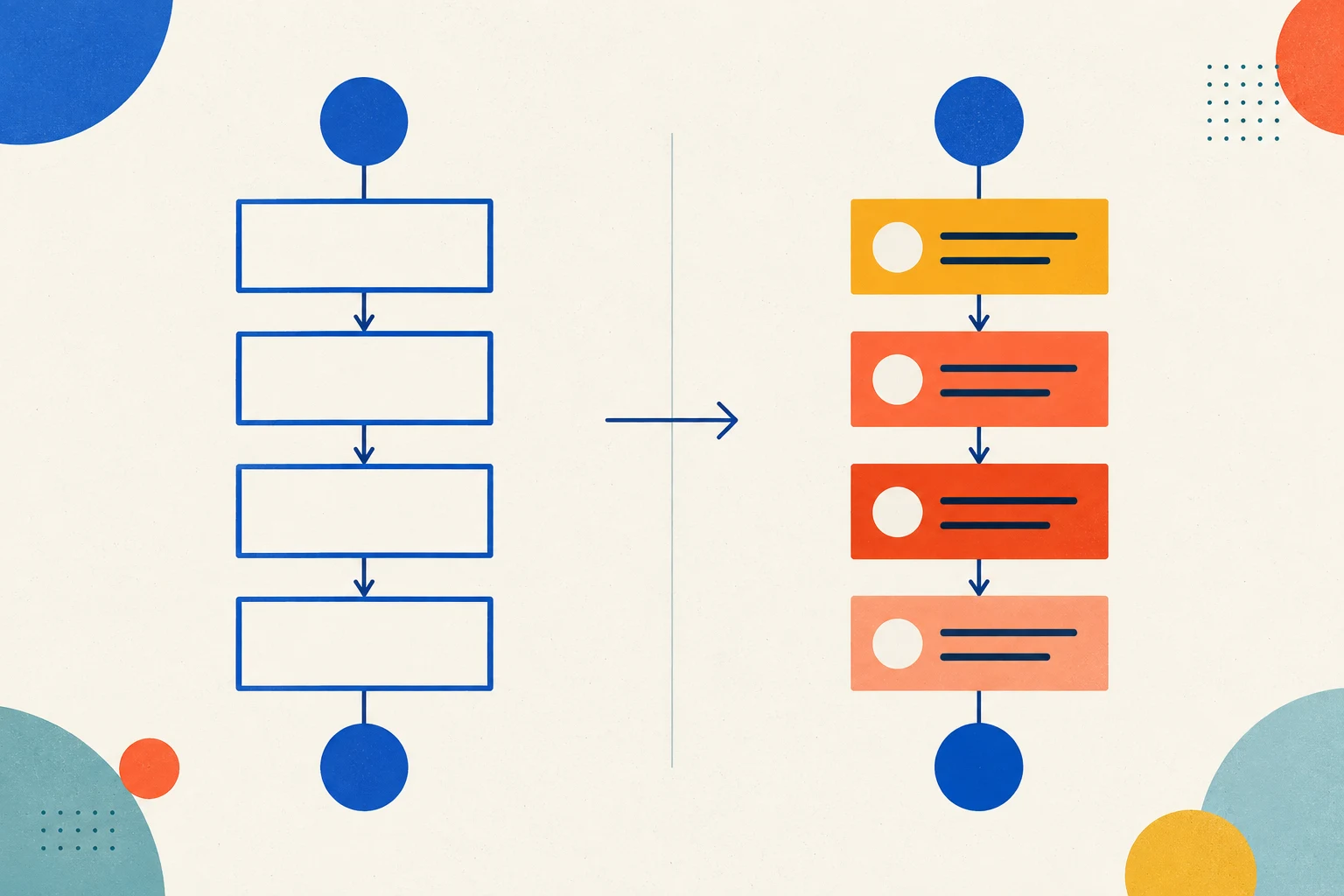
A template may contain sample labels that demonstrate the layout. Replace every sample with your own facts and remove pieces that do not apply. Do not preserve a box just because the example used one. If the sample includes more stages than your actual process, a shorter diagram may be clearer.
For a small launch plan, keep only the milestones that affect a decision or handoff. If the template shows a progress marker, use it only when you can define what that status means. A real label such as “copy approved” is more helpful than a generic “step 3” carried over from the preview.
Check the structure before choosing a look
First verify that all required information has a place and that the layout does not imply a false relationship. In a hierarchy, vertical position suggests levels; in a sequence, neighboring steps suggest order. If the template makes an optional route appear mandatory, rename or replace it rather than hoping readers infer your intent.
When the content does not fit, return to the gallery and try a different layout. You can also begin with a plain outline and let AI draft a structure from the prompt. The choice is practical: a template gives you a known frame, while open generation can help when the shape is still emerging.
Finish the template as your own
Once the structure is accurate, adjust the wording and style for its audience. Use consistent names, readable label lengths, and a palette with enough contrast. If the diagram will be maintained, save it on a board or export the editable project JSON so the next editor can continue from the source structure.
Preview the final result at its intended size. A template that looks spacious in the gallery may become crowded after your longer labels are added. If that happens, simplify the text or choose another frame. The best starting template is the one that gets out of the reader’s way after your content is in place.