Choose code mode for a real need
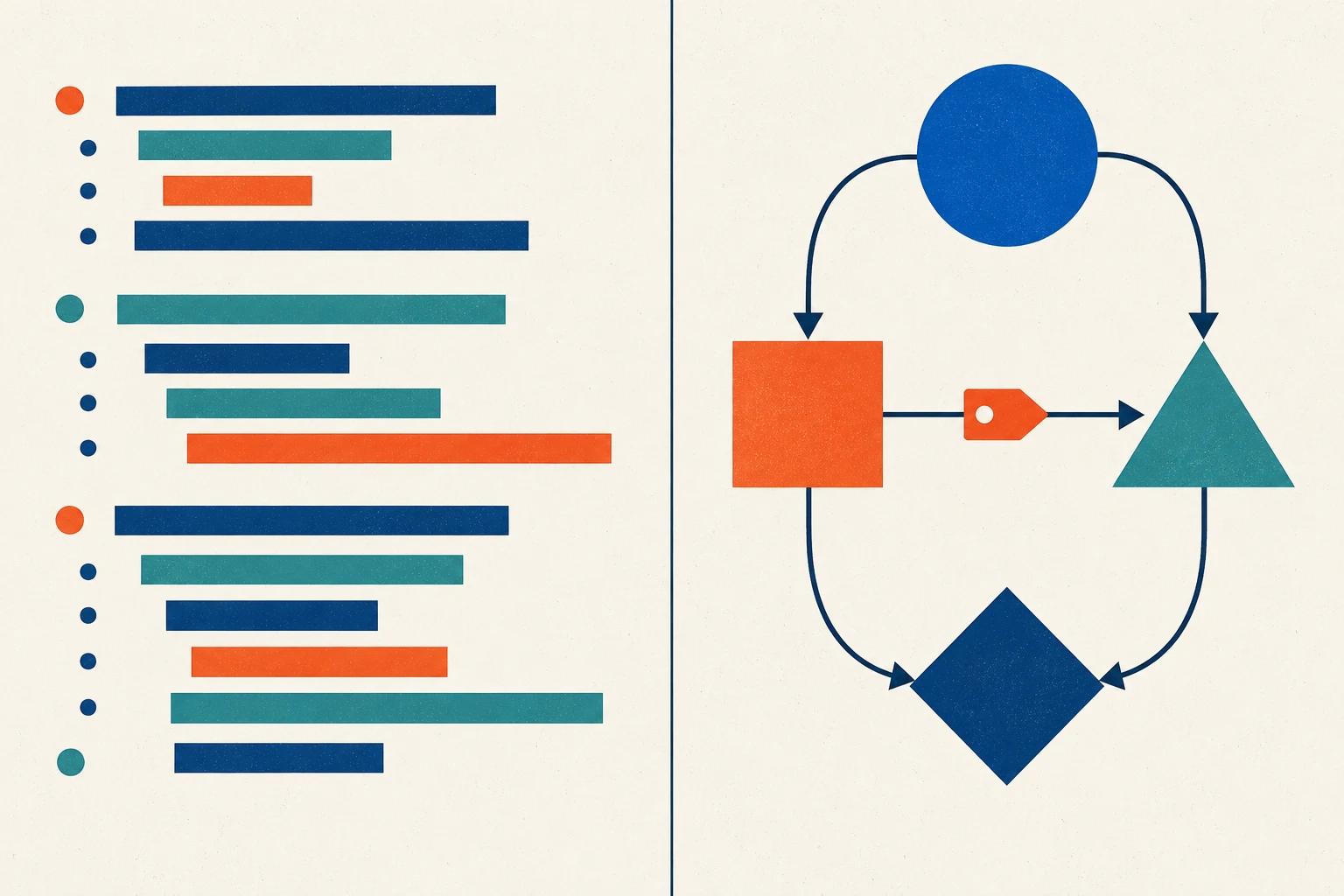
Most diagrams can be edited through the outline and style controls. Native syntax is useful when you need more precise control over layout, data, or relationships than those controls provide. It exposes the diagram’s syntax in a code panel that can be edited, copied, or downloaded.
For a relationship map, you may need to define which specific nodes connect rather than relying on a general visual grouping. For a custom chart or layout, syntax can express details that would be cumbersome to adjust through labels alone. If the task is only a title correction, stay in the simpler content panel.
Inspect the generated syntax first
The code panel can create syntax from the current diagram. Read it before editing so you understand the structure it represents. Make one focused change and preserve the rest of the declarations. Syntax is exact: a misplaced character can prevent the diagram from rendering, while a valid but unintended relationship can still change its meaning.
If you are unfamiliar with the format, begin with a small edit in a copy or test diagram. Adjust one label or relationship, apply the syntax, then compare the result with the original. This makes it easier to tell whether a problem came from your edit or from an assumption already present in the diagram.
Validate before applying
Use the panel’s apply action to check the syntax and see any validation error. Resolve the reported issue rather than repeatedly applying the same text. If the error message points to a line or field, compare it with the surrounding syntax and make the smallest correction that restores a valid structure.
When syntax applies successfully, inspect the rendered diagram rather than assuming validation guarantees a useful visual. The parser can confirm that the code is acceptable, but it cannot confirm that the connections tell the story you intended. Trace the main path and verify any exact edge or value against your source.
Understand the editing mode boundary
When native syntax is applied, code mode replaces structured editing until you switch back. The editor keeps the original structured content for later, but changes made in the native syntax do not automatically become equivalent edits in every outline field. Treat the modes as two ways of working with a diagram, not two synchronized editors.
If you need to make content-panel edits, switch back deliberately and check which version is active. Save a project copy before a large syntax rewrite so you can recover the last known-good diagram. This precaution is especially useful when the syntax contains connections that are difficult to reconstruct by eye.
Carry the precise version forward
Once the diagram renders as intended, copy or download the syntax if it belongs in a technical source repository or review. Also save the project JSON when you need the full editable board representation. Keep the two files named clearly; the syntax and project serve different purposes.
Before exporting an image or sharing a live board, ask a second reader to verify the exact connections and the meaning of any custom layout. Precision is valuable when it makes the structure reproducible. It is not a reason to skip a plain-language explanation for people who will use the diagram.