Open the source outline
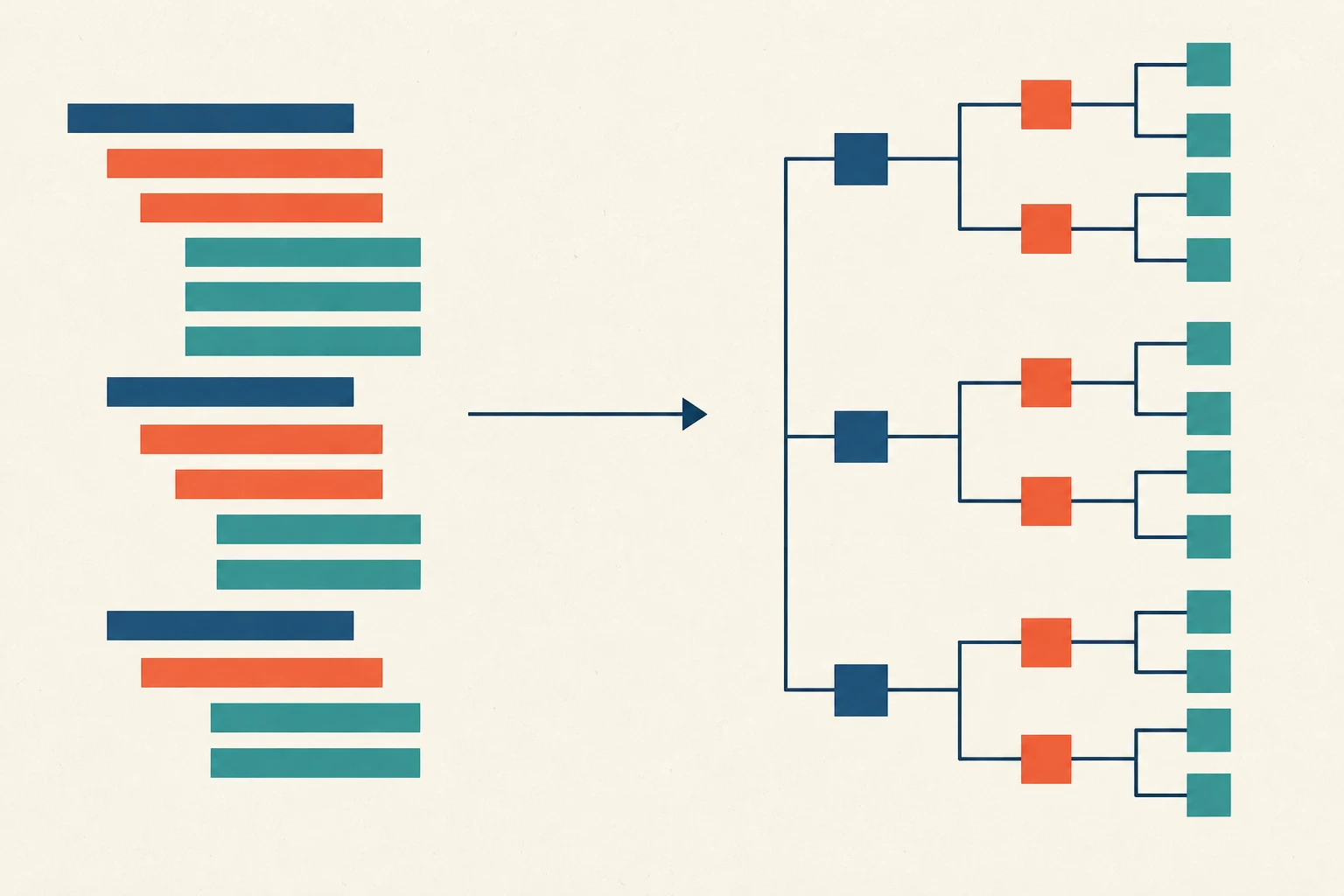
The text panel gives you a compact way to work with a diagram’s source lines. It is useful when several labels change together or when you want to reorganize a nested outline. The panel is different from the item-by-item controls: it lets you think in terms of text structure before the diagram redraws.
For a workshop plan, you might start with “# Workshop” and write one activity per line. If the structure has themes and related examples, indent those examples beneath the theme. The source remains ordinary text, so you can draft and review it without navigating a large canvas.
Use a readable outline convention
Begin with a clear title, then put one main idea on each line. Use “Label: description” when a short explanation helps, and keep the description distinct from the main label. The editor’s outline tips also support bullets and nested indentation for mind-map branches.
For a product onboarding map, write “Create account” and “Set preferences” as actions, then nest “Choose team” and “Set notification times” under setup if they are parts of that step. Keep indentation consistent. If a relationship is not truly a parent-child relationship, use a separate line or a different layout.
Know when a full redraw is appropriate
Updating the text outline redraws the diagram, so use it when the source structure itself should change. If the task is a single spelling correction or one value, the content panel may be safer and faster. Think about whether your edit should rebuild the current arrangement before you apply it.
If your draft contains a custom connection or other layout-specific detail, check that the text representation is sufficient to express it. Do not assume every visual property is encoded in a simple outline. Keep an editable project backup before replacing a complicated structure with a broad text revision.
Read the new arrangement carefully
After the redraw, compare the title, order, nesting, and any descriptions with your intended outline. A parent line can make its children appear subordinate even when you only meant to group them informally. Check how the current template treats nested content, and select another layout if the new hierarchy is not the right story.
Look at the whole canvas, not only the text fields. A longer label may wrap or shift the visual balance, and additional nested items can increase density. If a branch becomes difficult to follow, divide it into a separate diagram or remove details that belong in a companion note.
Keep a clean source for the next editor
When the outline works, make sure the diagram title and labels use language that future editors can recognize. Save the board or export an editable JSON project so the structure can be reopened. The text outline is convenient for revisions, while the project also preserves the board and diagram data.
Before sharing the result, ask a reader to trace a branch and say what its indentation means. If they interpret a child as an action after its parent when you intended it as an example, revise the wording or choose a layout that communicates the relationship more clearly.