Start from the event the timeline serves
A timeline should help someone understand or plan a sequence of meaningful events. For a small product launch, the audience may need to know whether the team is on track for release and which decisions remain. That purpose determines which dates matter. A daily standup is routine; content freeze or release readiness changes what work can proceed.
Write the audience and question beside your draft. “What must be true before release?” points to milestones and dependencies. “What happened during the last quarter?” may call for a retrospective timeline instead. A calendar of every task is a different tool. Choose the view before collecting dates so the visual does not become a crowded task list with decorative ticks.
Pick milestones with consequences
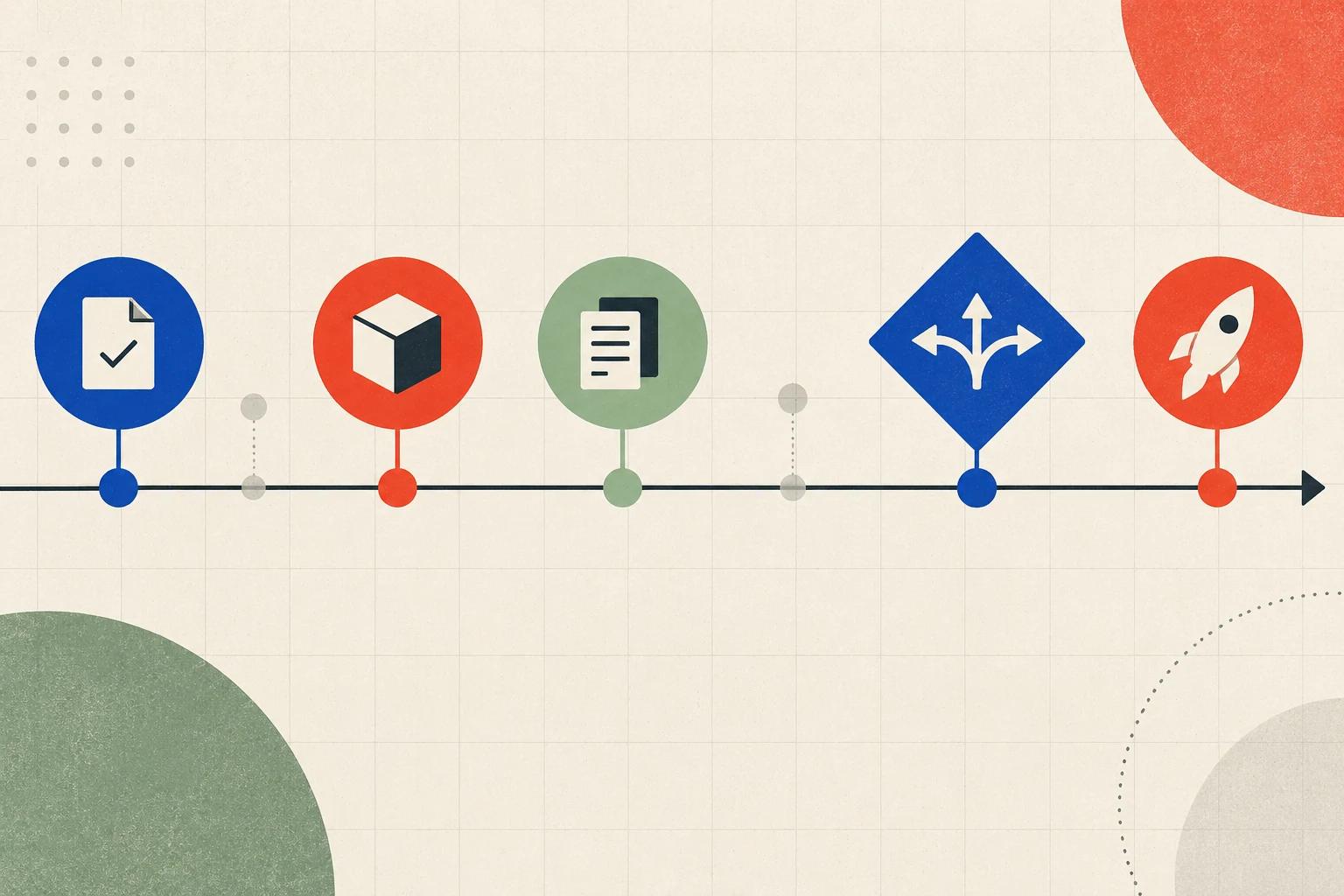
For the launch, consider brief approval, prototype review, content freeze, final accessibility check, and release decision. Each milestone is a point where work is accepted, a dependency is released, or a commitment changes. Avoid listing every working session unless the meeting itself is a decision gate that affects the plan.
Give milestones labels that say what is complete. “Prototype reviewed” is clearer than “Review.” “Copy approved for release” distinguishes a content freeze from a first draft. A milestone date can be a target or a confirmed event; use different markers or wording so readers do not mistake an estimate for a commitment.
Show what lies between dates
A line of dates can hide the work that connects them. Add a short note below each milestone describing the evidence or deliverable required. Before prototype review, the team might need a testable flow and a list of unresolved questions. Before content freeze, reviewers need approved product names and a decision on the final call to action.
If several tasks run concurrently, avoid implying that one must finish before another simply because its label appears first. Use lanes or grouped workstreams when parallel activity matters. For example, documentation and analytics setup may proceed while visual design is under review. A timeline’s spatial order is read as chronology, so placement must match the actual dependency structure.
Treat uncertainty as part of the plan
Some dates depend on external review or a decision that has not happened. Mark the date as provisional and show the dependency, such as “accessibility review scheduled after prototype sign-off.” A timeline that displays every target with equal confidence creates a false sense of certainty. Readers need to see which commitments are firm and which move when an input changes.
Add a decision point before an uncertain milestone if the team has a real choice to make. If the prototype fails a key test, the release date may move or scope may be reduced. State the decision owner and the evidence they will consider. That small note can make the timeline useful for planning rather than simply reassuring people with a neat row of dates.
Avoid precision that the plan cannot support
A timeline may show months or weeks when exact days are not confirmed. Do not invent date precision to make the graphic look finished. If the release window is “late September,” use that wording and explain what will firm it up. An estimate should be presented as an estimate, especially when downstream teams may schedule work around it.
Likewise, do not assign durations without a basis. A milestone spacing can visually imply that one phase takes longer than another. If elapsed time matters, scale the axis accurately; if it does not, use a milestone sequence without suggesting proportional duration. Add a note about the display’s meaning so readers know whether spacing represents time or simply makes labels fit.
Review the timeline with owners
Ask the owner of each milestone to confirm its date, acceptance condition, and dependency. Then ask a downstream participant to identify what they can prepare before the milestone. This catches hidden assumptions such as a reviewer needing data that the plan schedules after the review. A timeline is a coordination artifact, so its logic should be checked by people who perform the work.
When the plan changes, revise the affected dates and explain the reason in the project record. Do not erase the history if teams need to understand why a commitment moved. A presentation timeline can stay uncluttered while a companion log records prior forecasts. Autodiagram can turn concise text into a timeline layout; settle milestone meaning first, then tune the visual spacing and labels.
Draft the launch milestones as one line each in Autodiagram, using labels such as “prototype reviewed” and “copy approved” instead of vague event names. Select a timeline layout, then revise spacing and wording to distinguish target dates from confirmed gates. Adjust font and palette for the presentation and export a PNG or SVG with the project plan.